Showing posts with label template. Show all posts
Showing posts with label template. Show all posts
Saturday, June 11, 2011
How'd She Do That?! Siggified Templates Tutorial & Freebie
 9:37 PM | Posted by
Laura |
9:37 PM | Posted by
Laura |


I asked a few days ago on the new Facebook Fan Page if my customers were still loving the Siggified Templates...or if they were old news. It seemed like the majority of the fans really loved the templates and would like some new packs, and then a couple responses stated that they either had never seen them before or weren't sure how to use them.
For those of you not familiar, email or forum signatures are a fun way to help your fellow forum posters see and recognize your name...and sometimes even get a little taste of your personality, depending on how you decorate your 'siggy'.
Here is a step by step tutorial with screenshots to help you get over your siggy-making-slump! First, you can grab this free template I've made so you can follow along :)

(click the image to download)
First, I opened my siggy template. As you can see, all layers are clearly labeled.

I chose a photo to stick in the photo spot. I positioned it in the layer above the one labeled 'photo'.

I clipped my photo to the layer labeled photo. This can be done by selecting layer>create clipping mask or also by keying ctrl+alt+g on your keyboard. This essentially cuts the extra bits of photo off that you don't want showing.
I then resized my photo to my liking.

For this signature, I used my Pretty Much the Coolest digital scrapbooking kit. You can find this one and lots of others in my Scrap Orchard shop. :)

In this template, there are a couple of layers for clipping paper backgrounds to. I selected the paper I wanted and resized it to 72ppi or 'web size' since the siggy itself is 72 pixels per inch for web use.

I dragged the paper into my siggy canvas (you could also select layer>duplicate layer and select your siggy template .psd or .tif file as the file you'd like the paper to be copied to). Again I keyed ctrl+alt+g to 'clip' my paper to the shape provided.
I repeated this step for the other shape layer that was provided.
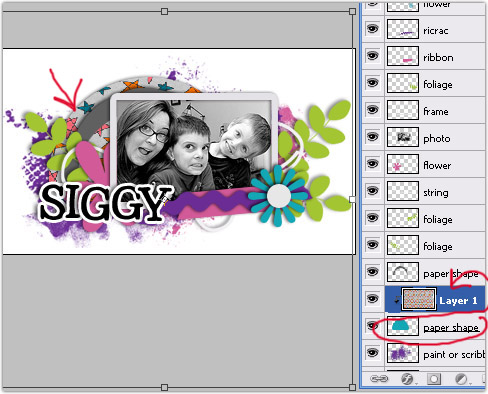
I chose a frame and resized it accordingly, repeating the drag & drop (or layer>duplicate layer to my siggy .psd or .tif file).
I positioned it above the layer marked 'frame' and resized until I was happy with the size and position of the frame. I then deleted the layer marked 'frame', since it is no longer needed.

I opened a doodled leaf element file and dragged it into my siggy workspace. I resized it and positioned it above one of the layers marked 'foliage'.
I then duplicated that branch layer twice for the other two foliage layers, and positioned them accordingly. You could use the same leaves or different ones, totally up to you! Delete the layers marked 'foliage', as you don't need them anymore.
I did the same with some doodle flowers for the layers marked 'flower'. I decided to use two different flowers. Again, I deleted the layers labeled 'flower' after I was finished using them as a guide.

For the layer marked 'button or brad', I decided to use a screw. The only screw available in the kit I was using was the centerpiece of a fabric flower. I used the elliptical marquee tool to select the screw and keyed ctrl+c to copy only the screw. You could also select edit>copy.
I then moved back into my siggy template workspace and keyed ctrl+v for paste. You could also select edit>paste. I repositioned and resized until I was happy with the placement of the screw in the center of one of my doodled flowers.

At the very bottom of the layers are two labeled 'paint or scribbles'. Instead of using paint splatters included in a kit, I decided to use the color overlay option in Photoshop to essentially recolor the paint shapes that were already provided in the template.
I used the eyedropper tool to click on a color from one of my papers. I repeated those steps on the other layer marked 'paint or scribbles' with another color from one of my flowers.

Lastly, we need a name, right? ;) I opened my alpha sheet and copy/pasted just the letters I needed to spell out my name. I made sure the alpha layers were placed above the ones marked 's' 'i' 'g' 'g' and 'y'. I provide these layers for a guide of where you should expect to place your alphabet or text in the spelling of your name or username.

After adding a drop shadow to my letters and moving them around a bit until I was happy with them, I selected image>trim to remove any excess space around my signature.
I also selected layer>merge visible to merge all of my layers together.

Many forums ask that you keep your signatures a certain size. For this siggy, I made sure it was no larger than 150 pixels tall. You can find these settings under image>image size.
I then saved my siggy as a .png file, keeping the transparency intact. Some forums have background colors other than white, so this promises that your siggy will still be lookin' hawt even if you're hangin' at a forum with a pink background.

Here is my finished siggy:
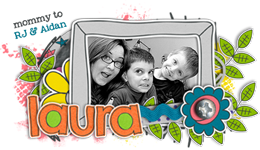
Comfortable with your siggy-making-abilities and wanting to change things up every once in a while? I've got five siggy template packs (each pack includes 4 templates) in my store...with more packs being added every month or two.
 Labels:

Thursday, October 28, 2010
Teenage Dream w/Micheline Martin & Siggified Take 3
Happy Thursday, everyone! I have a really awesome collab out today with the fab Micheline Martin!
Teenage Dream
w/Micheline Martin
Teenage Dream
w/Micheline Martin

Check out the additional previews in the store for a closer look at the elements, patterns, solids and some more really rockin' sample layouts.

by Carly

by Sally

by LeeAndra

by Lita
Next up is the third set in my siggy template series...
Siggified - Take Three

Just a couple of the super cute samples my team made up:


Stop by again next week for another Take It Back Tuesday, Sneaky Peek Wednesday and New Release Thursday ;)
Friday, September 24, 2010
Designiversary Extravaganza Day 5: Template Freebie
There are 2 days left in this week long designiversray celebration! I'll give you a hint and let you know that the rest of the days are alllll freebies!

Today, I have a template freebie to share:

Today, I have a template freebie to share:

Tuesday, August 24, 2010
NEW CU Easy Peasy Heart Paper Templates {$1}
Paper making has never been so easy! Create great patterns in a few clicks! These four 12x12 CU templates are layered and labeled for super easy use. Both .psd and .tif files are included. 300ppi Commercial use okay, no credit required. Fantastic for Valentine's Day kits or just any lovey dovey ones! <3
It's very rare that I add a brand new item to the $1 Pixel category, so grab them up quick! ♥

Here's a little sample paper made using the templates, just to give you an idea:

I'll be back tomorrow with 2 sneaky peekies of Digichick releases! :)
Tuesday, April 20, 2010
$1 Pixels and Templatey Sneak Peek

^ I've got three $1 Pixels for you today :) ^
And a sneaky of my last release at FunkyPlayground for my April guest stay:
And a sneaky of my last release at FunkyPlayground for my April guest stay:

Did you love Scrapper's Block 1 through 4? Want to win the 5th pack? Leave a comment here for your chance to win! I'll be back tomorrow with a name :)

Thursday, March 11, 2010
Thursday is Digi Chick Day!
Hiya! Carrin, here, with today's new releases from {simply.scraps} at The Digi Chick.


The next few products were originally available in Laura's February Project 365 grab bag with Connie Prince.


You're still here? Go shopping! Enjoy!
Carrin :)

The next few products were originally available in Laura's February Project 365 grab bag with Connie Prince.
You're still here? Go shopping! Enjoy!
Carrin :)
Friday, February 12, 2010
2/12 Releases at ScrapMatters
It's release day again at ScrapMatters and I have two new items in my guest shop there!
First up is the fourth installment in my Scrapper's Block series
Scrapper's Block 4

Next up are my first photo editing actions. You, too can have some rockin' lookin photos in a SNAP!
Edit Like a Rockstar Vol.1
First up is the fourth installment in my Scrapper's Block series
Scrapper's Block 4
Next up are my first photo editing actions. You, too can have some rockin' lookin photos in a SNAP!
Edit Like a Rockstar Vol.1

And now on to some fabulous sample pages!

by me using Scrapper's Block 4, Potty Like a Rockstar, Edit Like a Rockstar and Boldly Red Alpha

by Aimee using Scrapper's Block 4 and Make Yourself

by Carrin using Edit Like a Rockstar and Emo Kid

by Lynn using Scrapper's Block 4 and Turtle Love
Thursday, December 17, 2009
Not one, but TWO! 20% off today :)
 I've got two really fun template sets for you today that I think you're really going to enjoy!
Scrapper's Block 3
The third set in my Scrapper's Block series, makes paper and photo blocking a breeze!


10 Things
It'll take more time to think of your ten things than to get all of your photos and blocking done!


And if you haven't yet, enter HERE for a chance to win $5 to my shop at The Digichick! I will be choosing a winner a bit later today :)
Subscribe to:
Posts (Atom)


